
A 30 seconds fix to a WSL2 catastrophic failure
I like WSL2 a lot. It is one of those pieces of my Windows setup that I expect to just be there: open the terminal, get my Linux shell, do the thing. It makes Windows 11 livable.
That also means that when it breaks, it feels worse than a normal application crash. It means I need to fix it fast. I use Rio and I configured it to start directly into zsh inside WSL2. One morning it simply closed immediately after launch. No time to read the error, no useful terminal left behind, just a very quick nope.
WSL2 is accessed from wsl.exe Windows executable so, as I usually do for those kind of Windows quirks, I opened a Powershell console e run wsl there to have a shell that stays open even if wsl.exe crashes.
The problem
It printed the following.
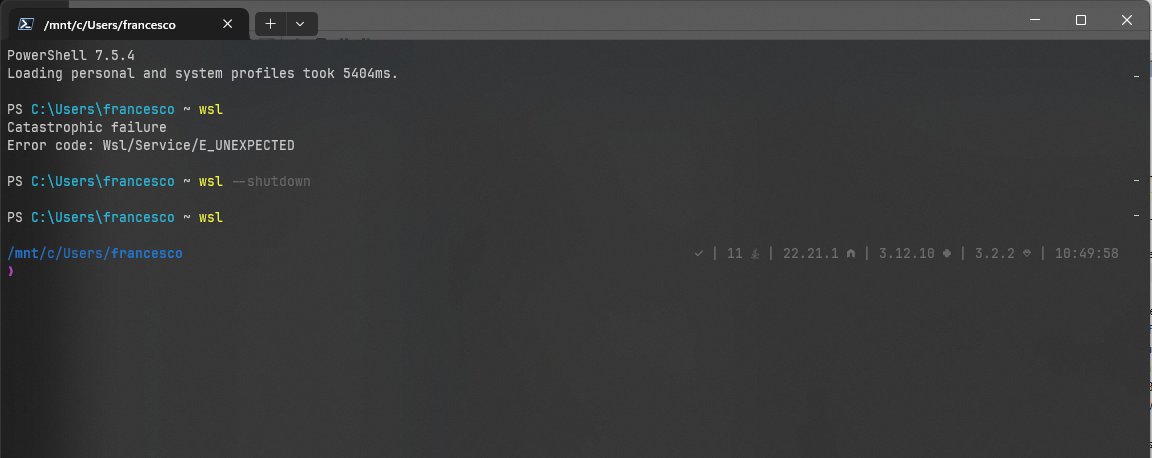
Wow! Catastrophic is a word I have very rarely seen in my life. Not one I’d rather use in code anyway. So I feared my WSL2 install was gone. Well, I thought fair enough, I will re-import the backup as start again, as have a backup on a ZFS pool server over a Samba share (but that’s a topic for a future blog post, maybe).
Then the /Service/ string in the error caught my eye. Windows WSL integration is tight and makes wonders, like exposing localhost port bindings in WSL to Windows, allow Windows to access WSL files and viceversa, and more. Those functionalities are managed by a Windows Service.
What if it was the Windows Service the one who suffered from the catastrophic failure? Traditionally, a full Windows restart fixes many things but I had too many open apps to be willing to restart my laptop, so I took another path.
How to fix
First turn off the WSL2 tiny VM to keep it safe.
wsl --shutdown
Then manually restart the crashed Windows Service. Search for Services in Start Menu and right click WSL Service, then Restart.
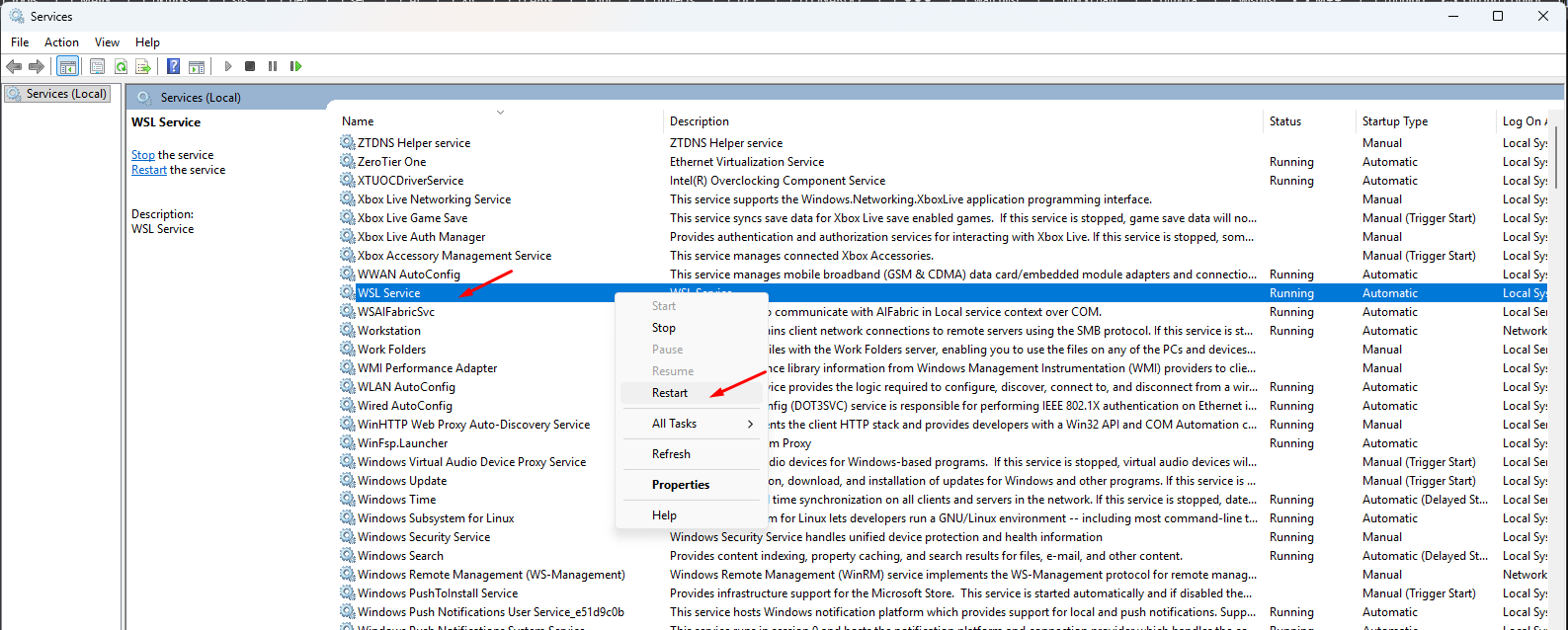
Once it’s done, back to the terminal to check if it’s fixed. Type wsl to restart the WSL2 machine and open its shell.
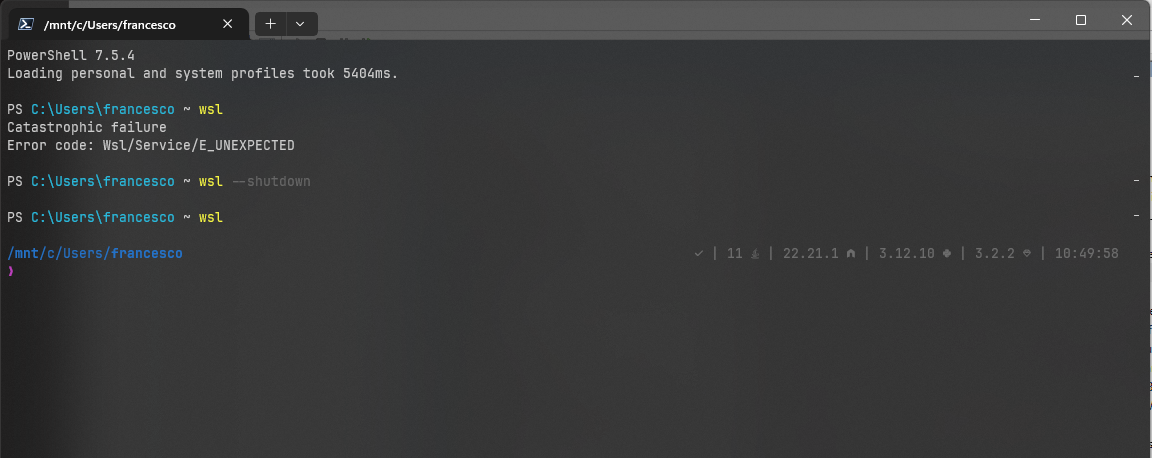
Bingo! My WSL install is still safe and sound. The catastrophe was actually avoided and I get back to work.
I hope it helps. Thanks for reading.